Downtime reasons & operator screens
UpBlue knows exactly when a machine stopped: the operation is created from the machine signal. What the data cannot tell is why. Was it a machine jam, a material change, a missing operator, waiting for the forklift?
That knowledge is on the shop floor, with the operator. Operator screens let the operator give every stop a reason, on a tablet next to the line, with a few taps. No login, no typing, no paper list at the end of the shift.
With the reasons in place, the question moves from “we lost 3 hours of availability” to “we lost 1 h 40 min on material changes, so that is where we start”. That is what makes the availability part of OEE actionable.
The setup has three parts:
- Reason trees — the list of reasons an operator can choose from.
- Screens — one per tablet or line: which stops show up, and which reason tree applies.
- The operator screen — what the operator uses on the tablet.
Before you start: the stops
Operator screens show the events of operation tags. So first make sure the stops of the line are registered as operations, preferably from a connection rule with Create events, for example “speed is lower than 5”. Read more about creating operations.
Every event is a stop the operator has to explain. Choose the condition so that normal speed dips don’t open one: “speed lower than 5” rather than “speed lower than the setpoint”.
Reason trees
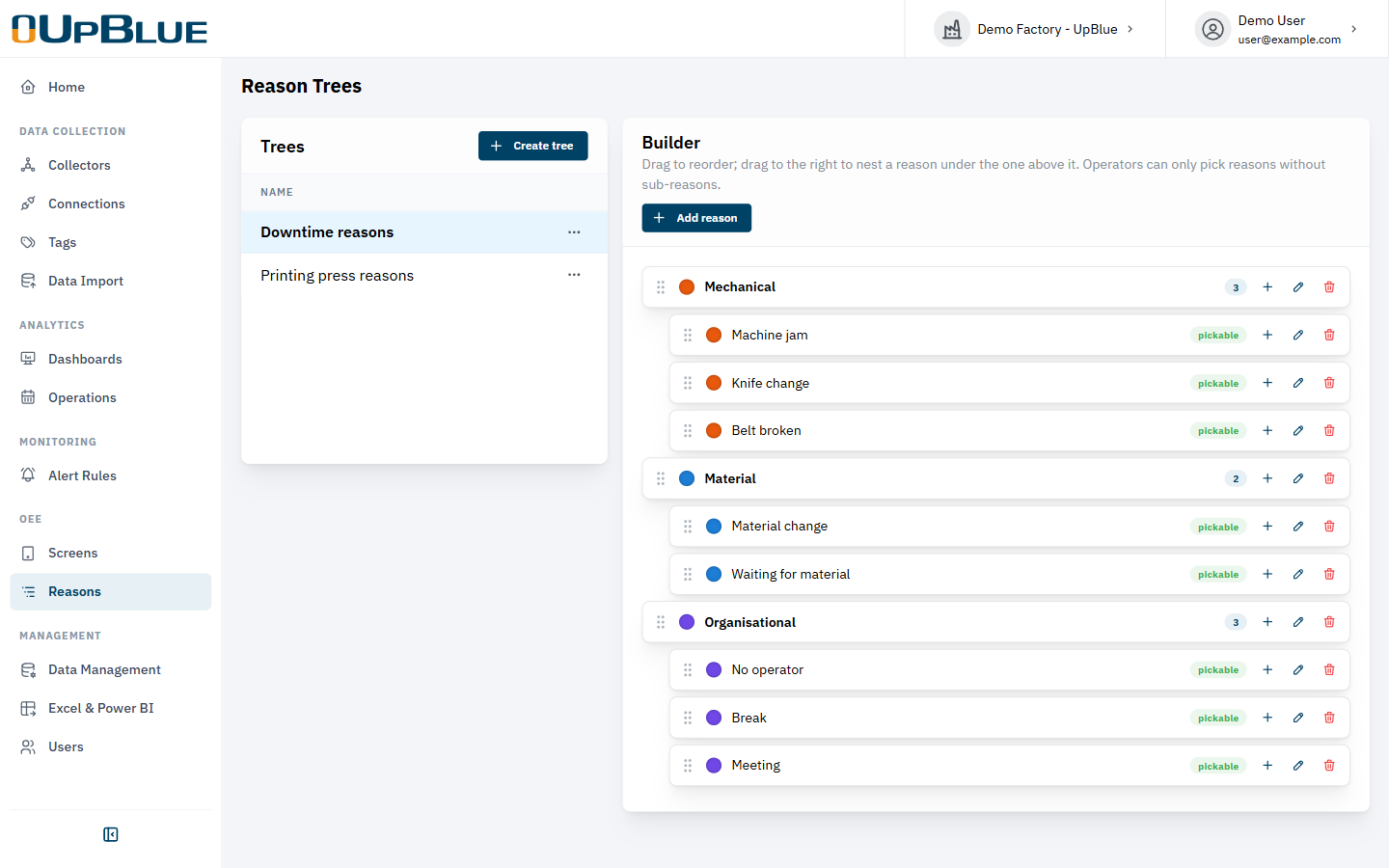
A reason tree is a list of reasons, organised in groups. For example:
Mechanical
  Machine jam
  Knife change
  Belt broken
Material
  Material change
  Waiting for material
Organisational
  No operator
  Break
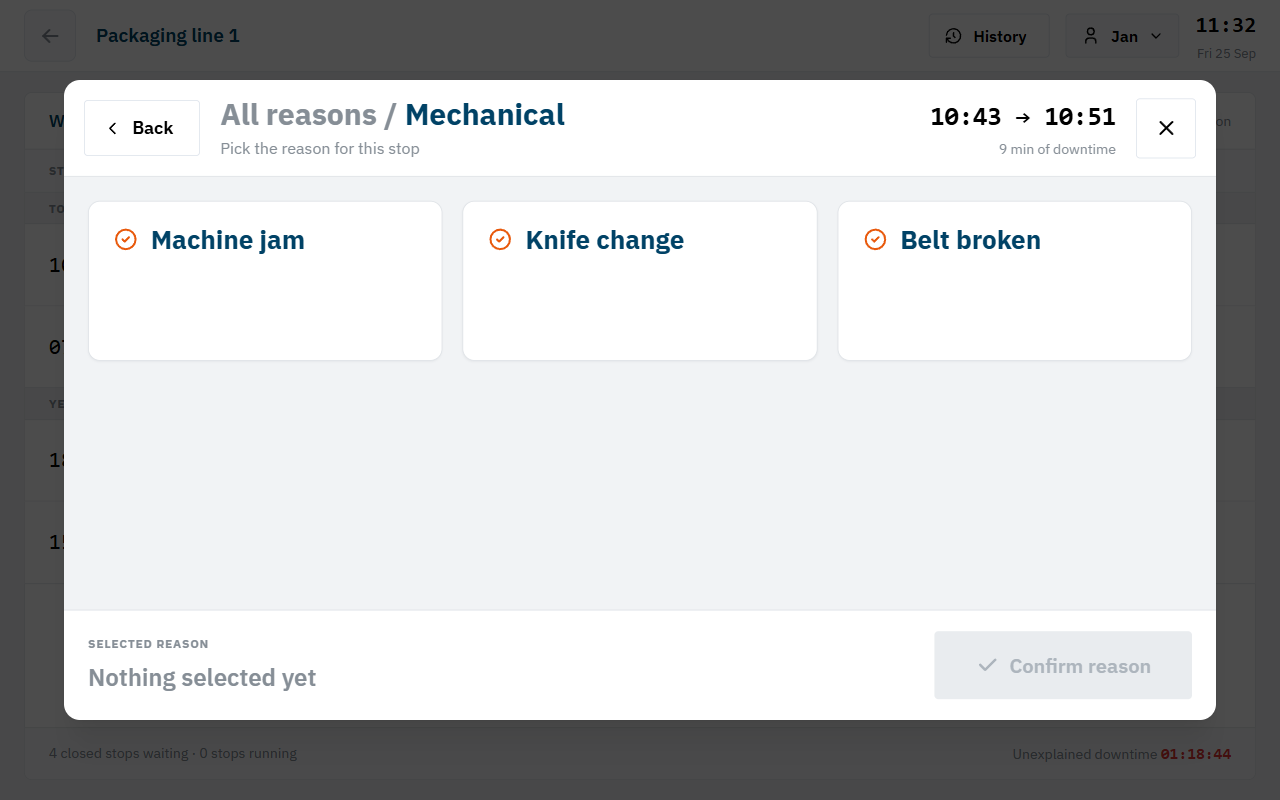
The operator first taps Mechanical, then Machine jam. Only the reasons at the end of a branch (without sub-reasons) can be picked; the groups are there to keep the screen short and clear, and to report per group later.
You can create several trees, for example one for the printing presses and one for the packaging lines, because their stops are different.
Create a tree
Go to the Reasons page. In the Trees card, create a tree and give it a name, for example Downtime reasons.
Add reasons
Select the tree. In the Builder, add the reasons. Give a reason a color if you like; it is used in charts.
Organise
Drag a reason to reorder it. Drag it to the right to nest it under the reason above it; that reason becomes a group.
Keep a tree small: 3 to 6 groups with a handful of reasons each. If operators have to scroll or search, they pick “Other”. Start small and add reasons when you see the same remark come back.
Changing or deleting reasons
Renaming a reason is safe: all stops that already have this reason show the new name, and reports stay correct.
When you delete a reason, you can reassign its classified stops to another reason, for example when merging two reasons into one. Without reassigning, the stops keep the deleted reason, and its name keeps showing in lists and reports. Operators can no longer pick it.
Screens
A screen is what one tablet shows. It connects a set of operation tags to a reason tree.
Create the screen
Go to the Operator Screens page.
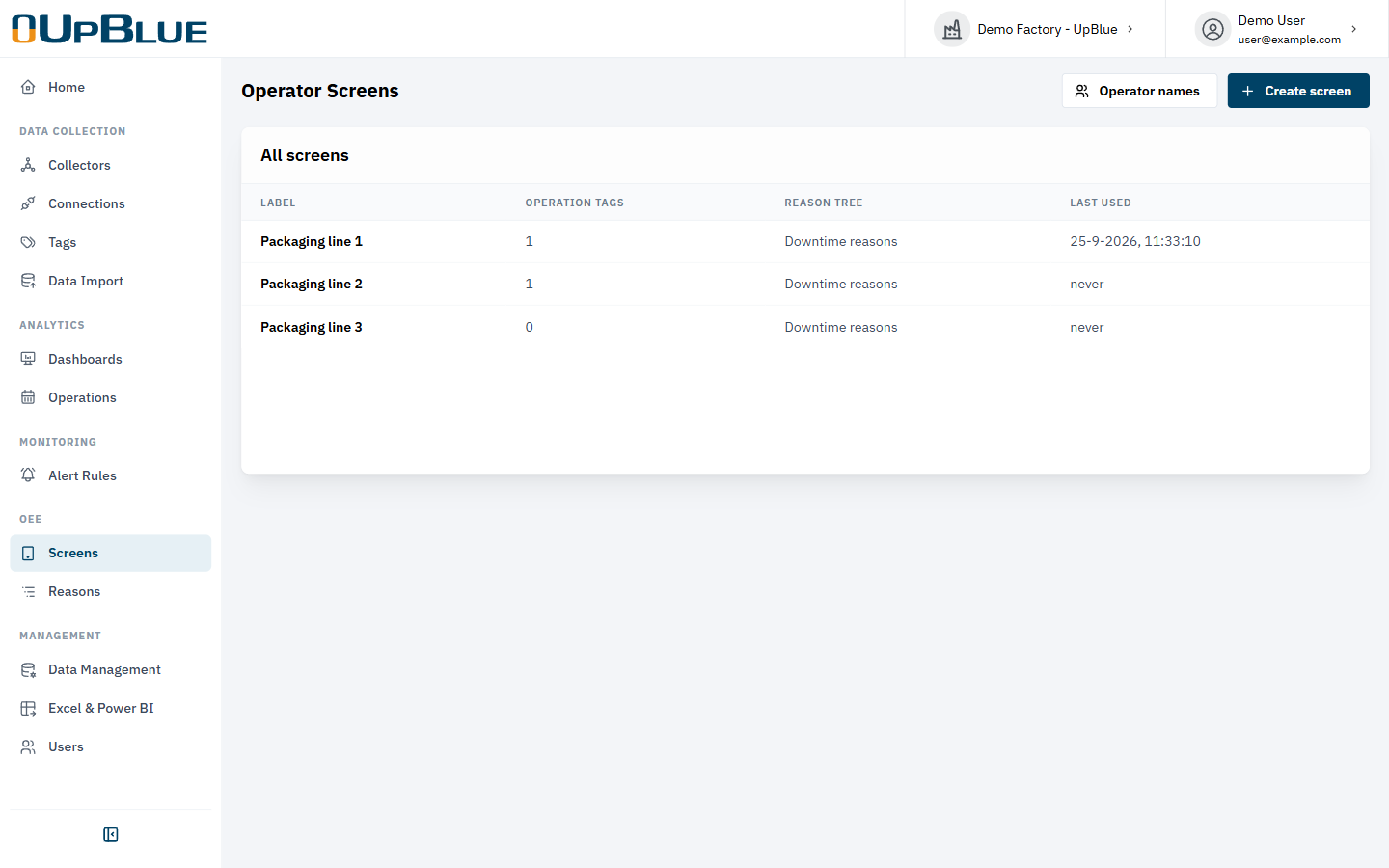
Give it a label, for example Packaging line 1, and choose the reason tree.
Save the setup link
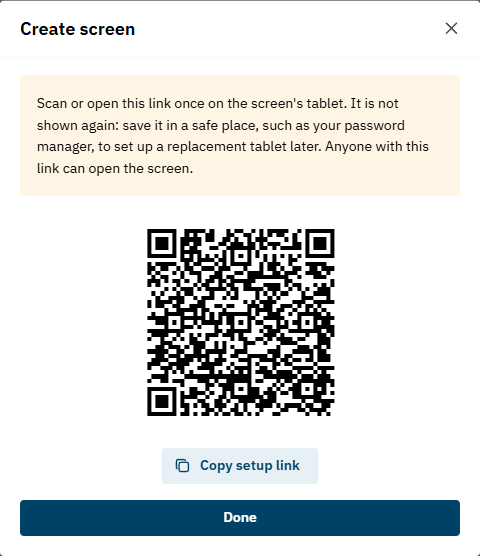
After creating, UpBlue shows a setup link with a QR code. This link gives a tablet access to the screen. It is shown only once: store it in a safe place, such as your password manager.
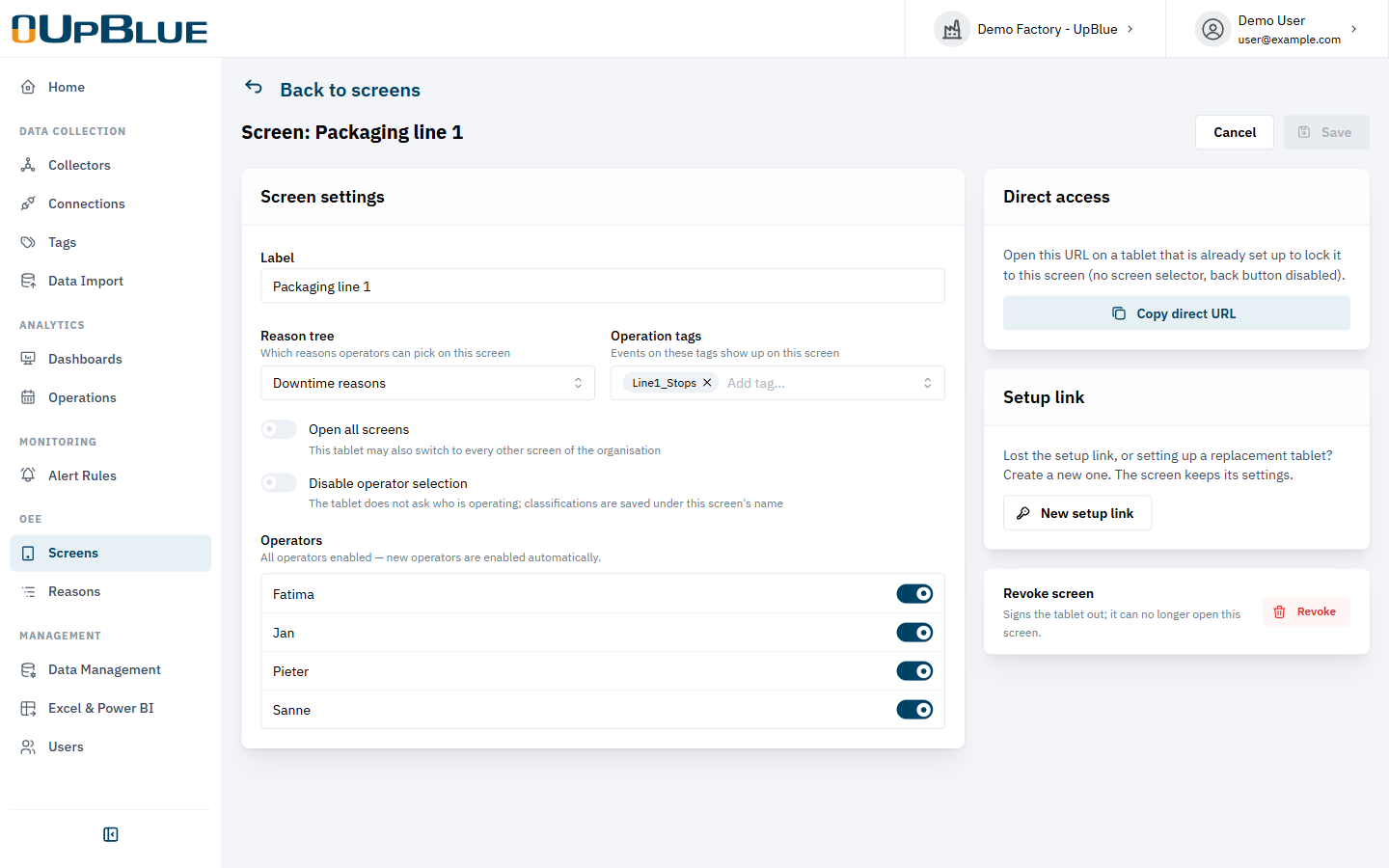
Settings
Click Done to open the screen’s settings.
- Label — the name the operator sees.
- Reason tree — the reasons operators can pick on this screen.
- Operation tags — the stops of these tags show up on this screen. A tag can be on more than one screen.
- Open all screens — this tablet may also switch to every other screen of the organisation. Handy for a team leader’s tablet.
- Disable operator selection — the tablet does not ask who is working; reasons are saved under the screen’s name.
- Operators — which operator names can be picked on this screen.
Operator names
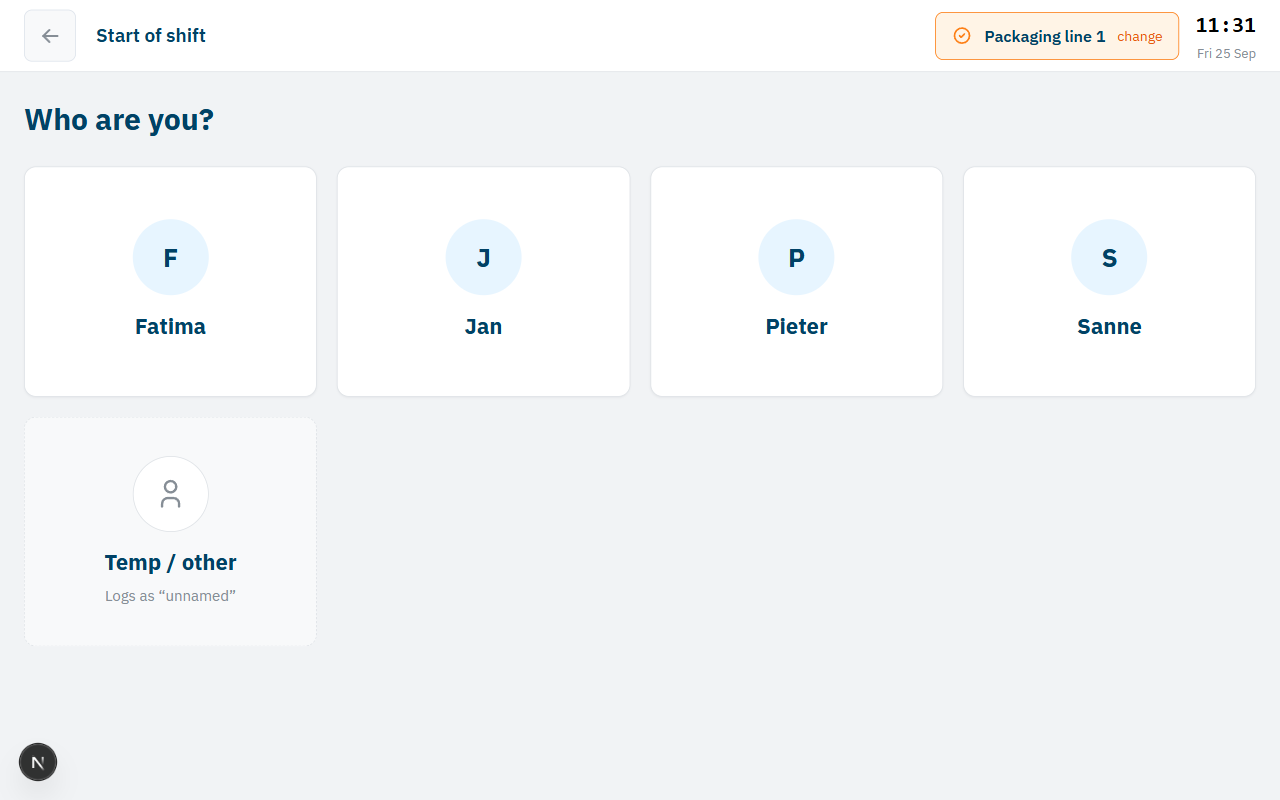
Add the names of the operators, for example Jan or Fatima. The operator picks their name at the start of the shift, so every reason is saved with who gave it. This is attribution, not security: operators don’t have a password.
New names are available on every screen, unless you have switched operators off on a screen; then new names start switched off there too.
Setting up a tablet
Open the setup link
Scan the QR code with the tablet, or open the setup link in its browser. The tablet is now linked to the screen and stays linked, also after a restart.
Pick the line
The tablet shows the screens it may open. Tap the line.
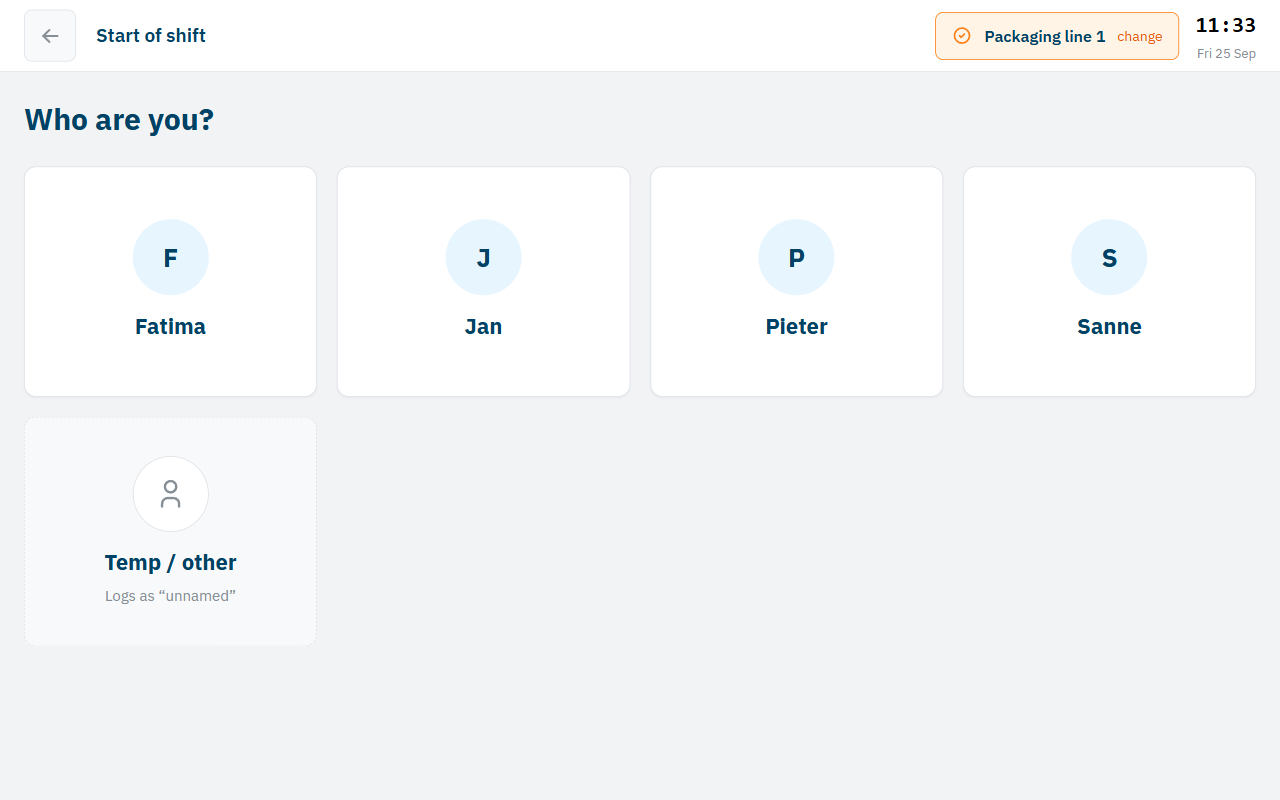
Pick the operator
Tap your name. Temporary staff pick Temp / other.
Kiosk mode: lock the tablet to one line
A tablet that is mounted on a line should not be able to wander off to another line. Open the screen settings and click . Open that URL on the tablet (after the setup link) and make it the start page of the browser. The tablet now opens the screen directly, without the line list and without a back button.
Replacing a tablet or a lost link
Click in the screen settings. The screen keeps its settings, but the old link stops working: tablets set up with it lose access until they are set up again with the new link.
Revoke removes the screen and signs its tablets out immediately.
The operator screen
The operator screen is built for a tablet on the shop floor: big buttons, large text, and nothing else.
- Running stops are shown at the top in red with a live timer. The operator can already give the reason while the machine is still down.
- Waiting for a reason lists the closed stops of the last 7 days that have no reason yet. A stop leaves the list as soon as it has one: the list is a to-do list, and the goal is to keep it empty.
- The footer shows the number of stops waiting and the total unexplained downtime.
Giving a reason
Tap a stop, then tap through the tree: first the group, then the reason. The stop is saved with the reason and the operator’s name.
Tapped the wrong reason? A green bar with Undo shows for a few seconds after saving.
History
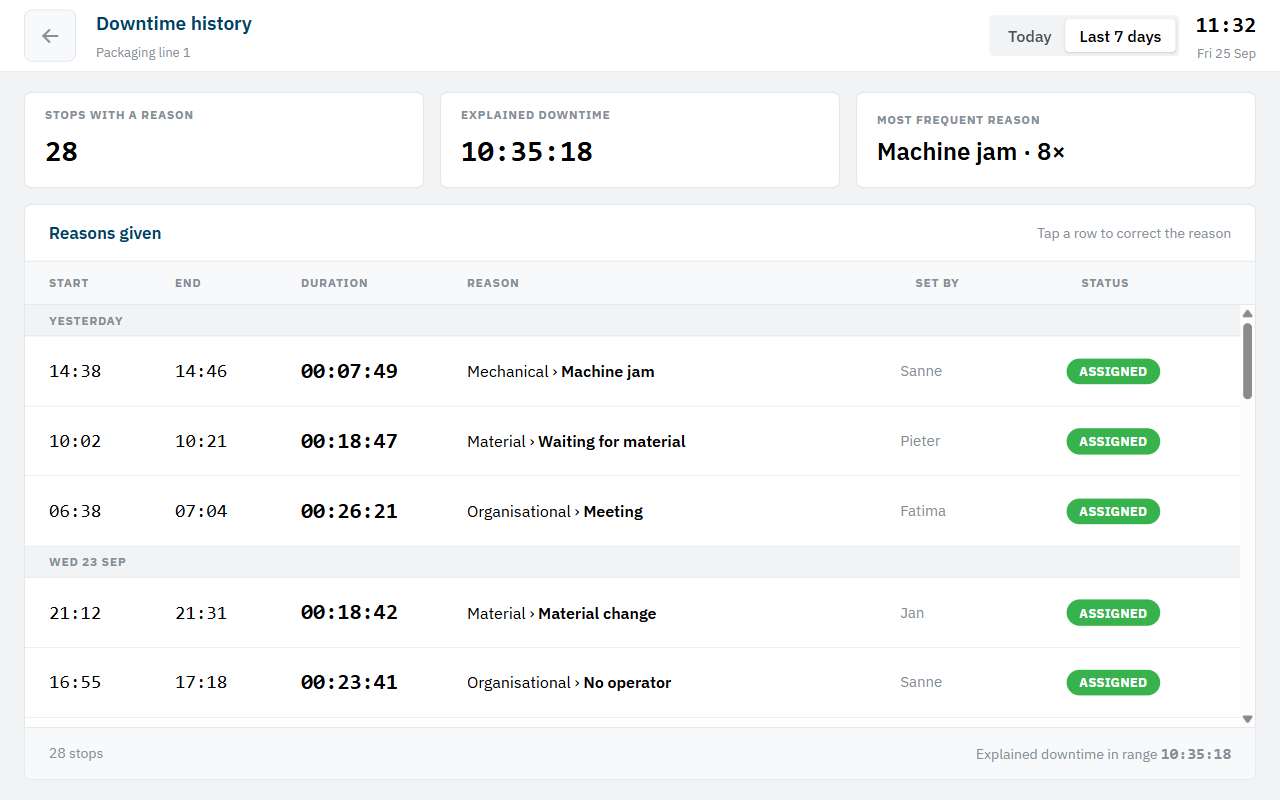
History shows the stops that already have a reason, for today or the last 7 days, with who gave it. Tap a row to correct the reason. The top shows the number of stops, the explained downtime and the most frequent reason.
Reasons in the office
Reasons are stored on the operation, so they appear everywhere operations do:
- Operations page — the list has a Reason column. Editors can set or correct a reason when editing an operation, for example for stops that were missed on the floor.
- Dashboards — the Operations datasource has
reasonandreason_set_bycolumns. With the aggregate step you get the classic OEE charts in one step: total downtime per reason, or per reason per day. - Excel & Power BI — the same query as an OData feed, for a Pareto chart next to your ERP data.